Quick Start
Connect to AionRouter in five minutes — get an API Key, call your first AI model, and connect your tools.
AionRouter is a unified gateway for AI models, compatible with the OpenAI API format. With just one API Key and one Base URL, you can access nearly a hundred mainstream AI models, including GPT, Claude, Gemini, and DeepSeek, through the same interface, without managing separate accounts and keys for each provider.
Whether you call the API directly from code or use clients such as Claude Code and OpenClaw, getting connected is just as simple.
[I. Get connected in five minutes with three steps]
[Step 1 — Get your API Key]
[1.1 Sign in to the AionRouter console]
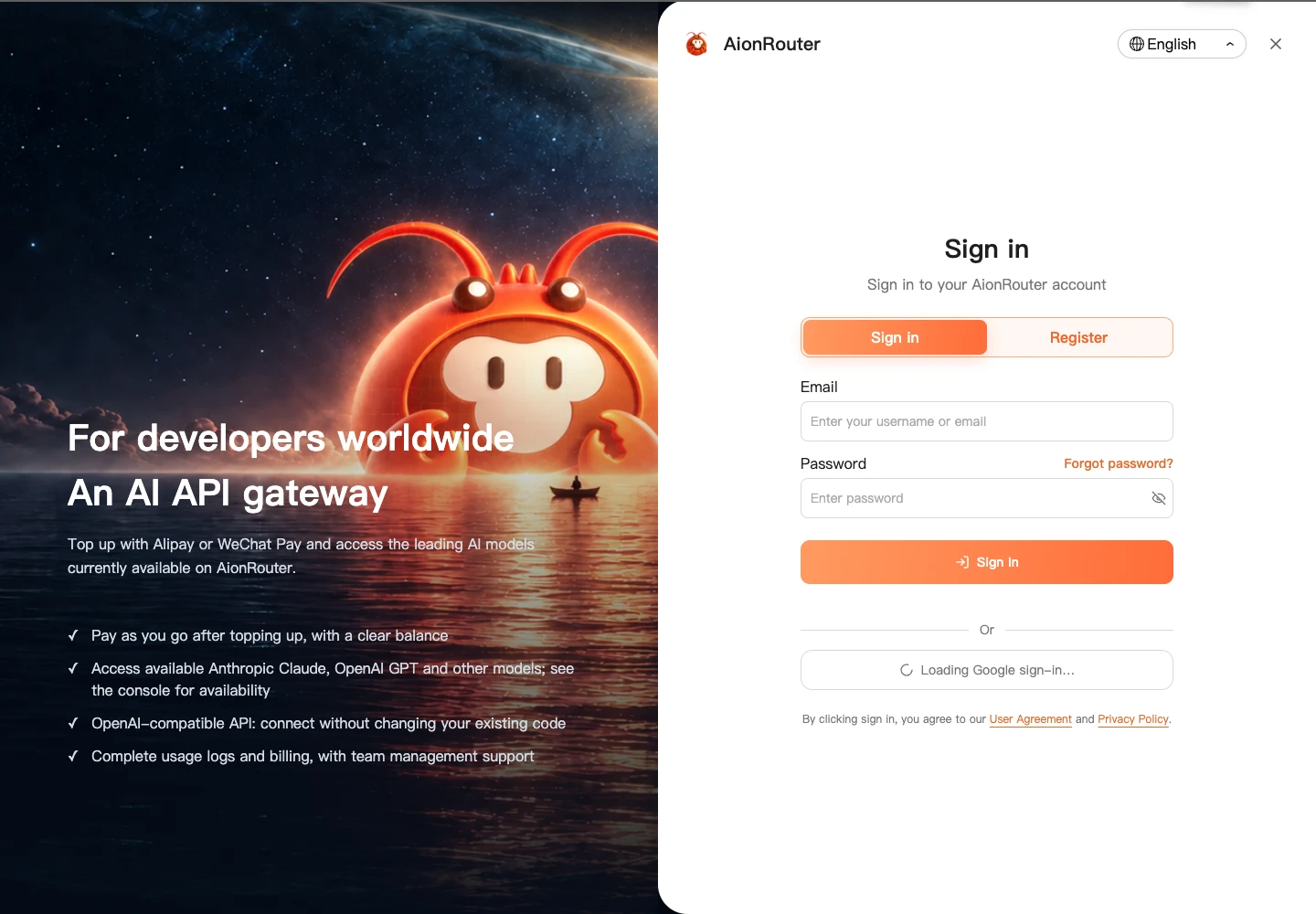
Open https://router.aionclaw.ai/ and sign in with Google or another email account to enter the console.
[1.2 Open API Key management and create a key]
Click “API Key management” in the left navigation to open the management page.
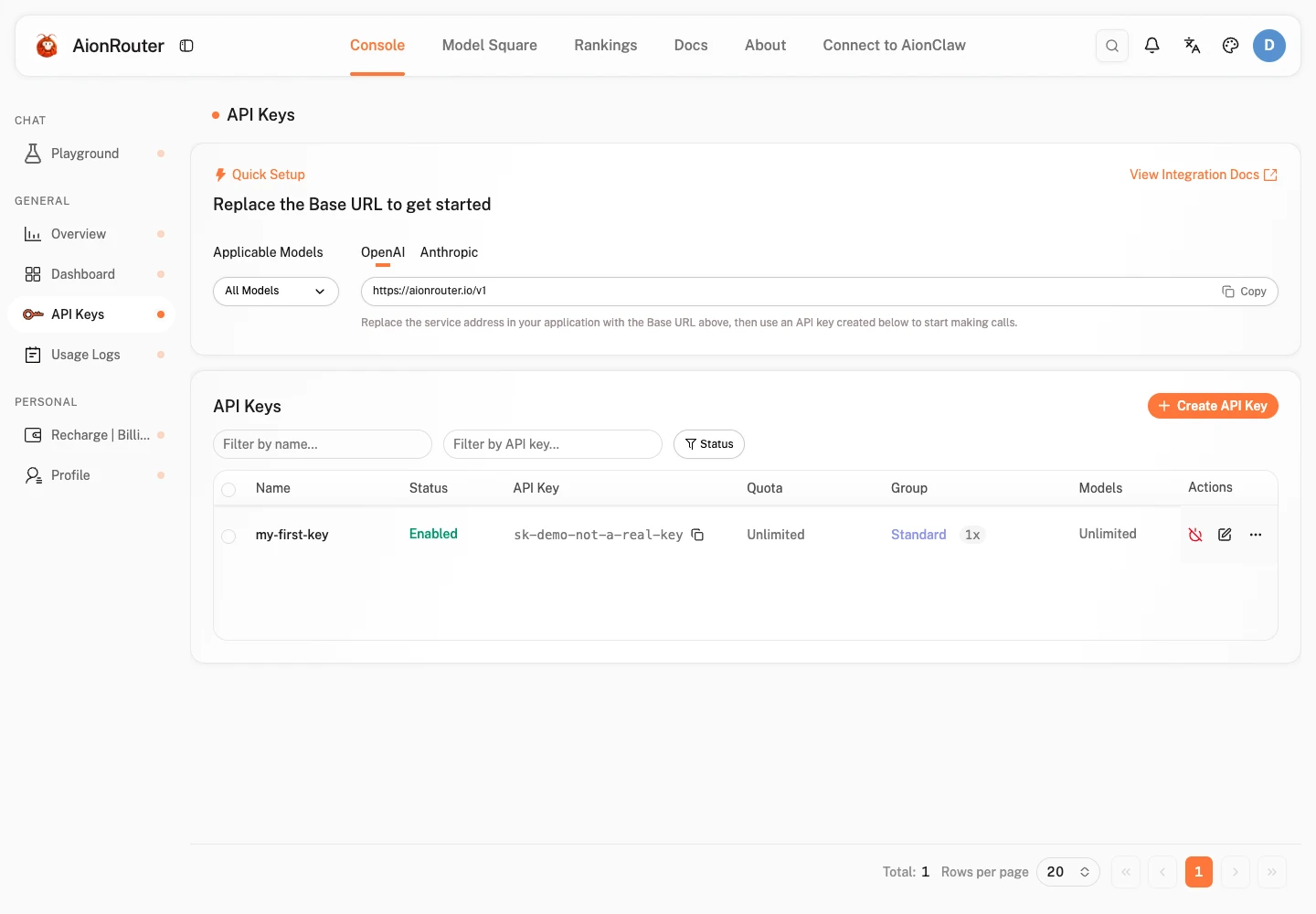
Click “Create API Key” and configure the following in the dialog:
- Key name: Give the key a name (such as my-first-key).
- Group: Optionally organize keys by project or purpose (not required).
- Number to create: Defaults to 1; adjust as needed.
- Quota settings: Select “Unlimited quota” or set the maximum quota for a single request.
- Other options: Configure an expiration date, IP allowlist, and other settings if needed.
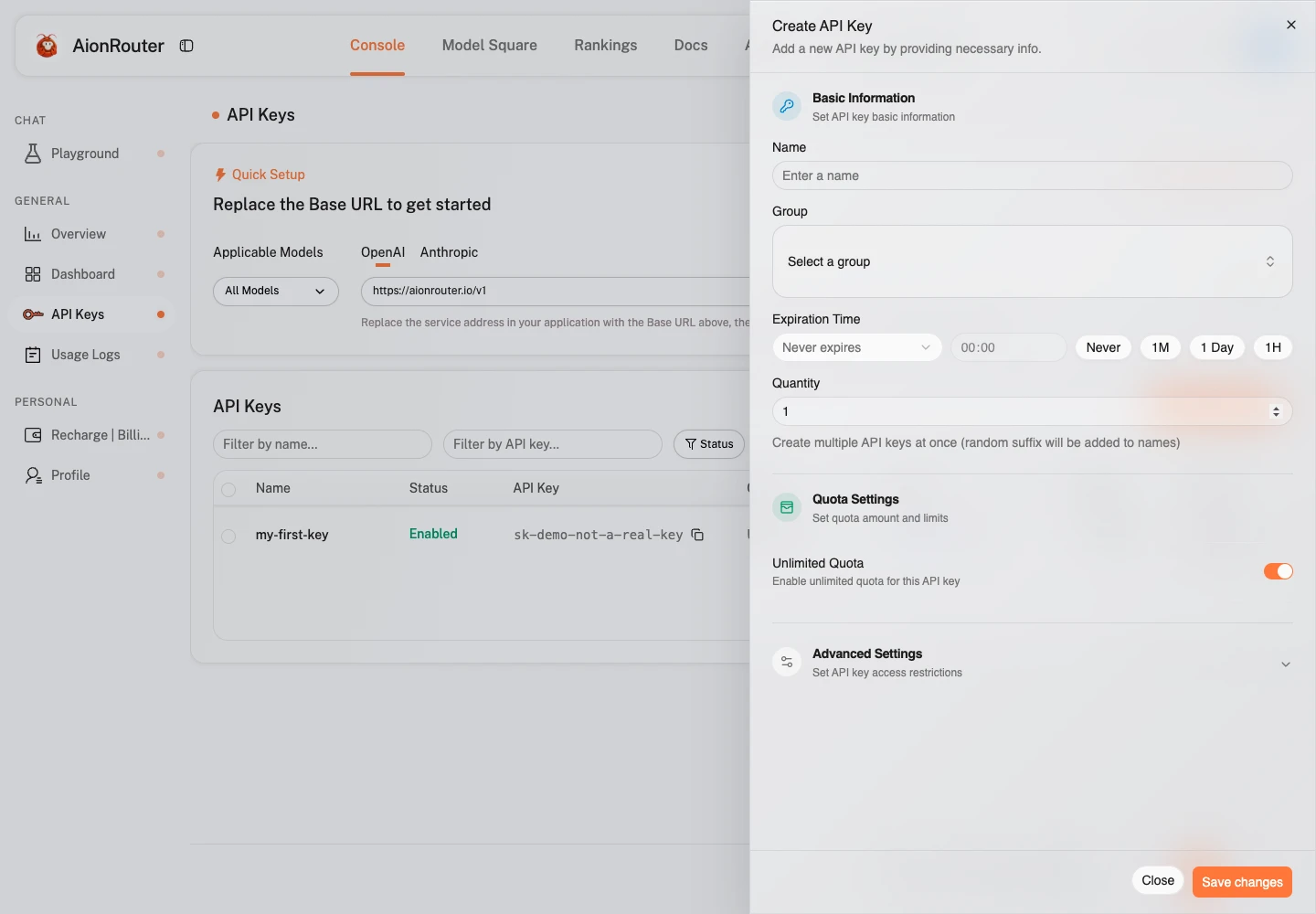
Click “Submit” to generate the key immediately.
[1.3 Copy your API Key]
After creation, find your API Key in the list, right-click it, and select the appropriate option:
- “Copy key”: Copy the API Key (starting with sk-).
- “Copy connection information”: Copy the complete configuration, including the Base URL and API Key, in one click.
The information you receive includes:
- Base URL: OpenAI-compatible mode https://router.aionclaw.ai/v1; Anthropic-compatible mode https://router.aionclaw.ai
- API Key: A key starting with sk-.
Important note
The API Key is displayed once in a dialog after creation. Copy it immediately and store it securely. You can view it again later by clicking “Show key” in the list.
[Step 2 — Make your first API call]
AionRouter uses an API format fully compatible with OpenAI and Anthropic. By changing the configuration, you can use the standard OpenAI SDK, or any third-party client or tool compatible with the OpenAI API, to seamlessly access all large models aggregated by AionRouter.
[2.1 View available models]
Browse all available models in the Model Square.
[2.2 Call your first model]
After choosing a model, enter it in the model parameter to make a call. The following uses gemini-2.5-flash as an example:
Tip
Enter the model name in the model parameter, for example deepseek-v4-flash.
View all available models in the Model Square or call GET /v1/models.
from openai import OpenAI
client = OpenAI(api_key="sk-...", base_url="https://router.aionclaw.ai/v1")
response = client.chat.completions.create(
  model="deepseek-v4-flash",
  messages=[{"role": "user", "content": "Hello"}],
)
[Step 3 — Connect your tools]
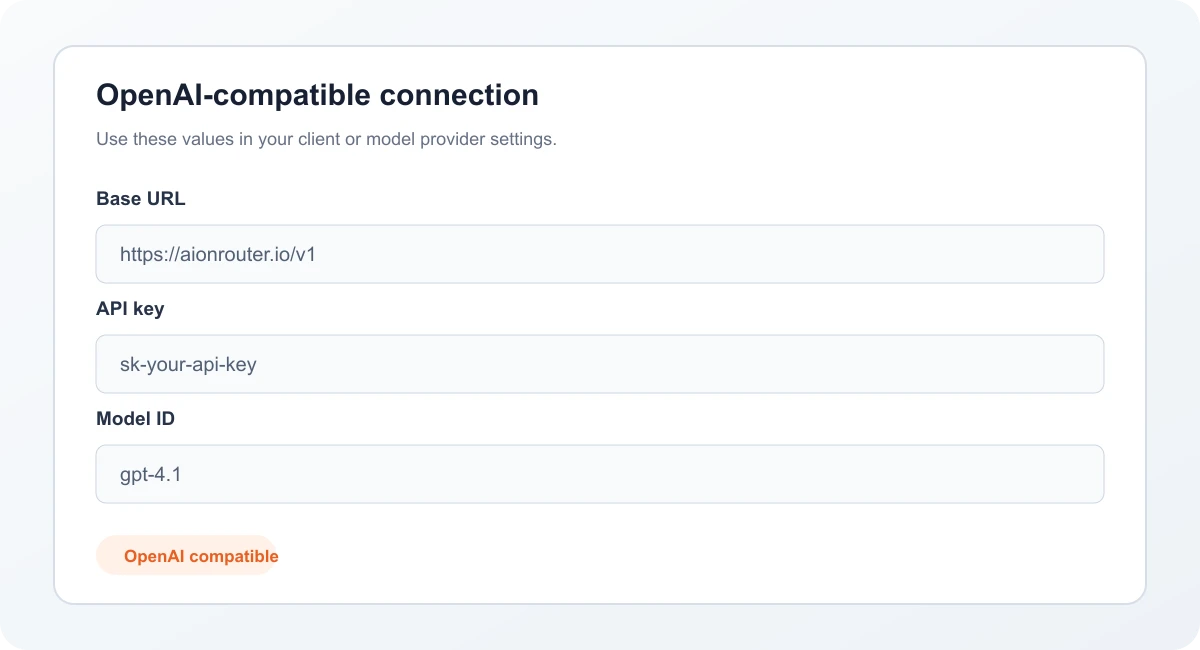
AionRouter supports all clients and tools compatible with the OpenAI API. You need three settings:
| Parameter | Value |
|---|---|
| API address (Base URL) | https://router.aionclaw.ai/v1 |
| API Key | The token you created in the console |
| Model name | Query /v1/models or refer to the model list in the console. |
[AionClaw]
A new generation of AI Agent platform: it does more than answer questions — it understands goals, plans tasks, calls tools, and gets work done.
- Open “Settings” → “Model providers” → Add provider.
- Select OpenAI as the provider type (or an OpenAI-compatible option).
- Enter the API address: https://router.aionclaw.ai/v1
- Enter your token in API Key.
- Add the model IDs you want to use (query /v1/models to find them).
[Other OpenAI-compatible tools]
Any tool that supports a custom API address can connect with these three settings:
- API address / Base URL → https://router.aionclaw.ai/v1 or https://router.aionclaw.ai/
- API Key → The token you created in the console
- Model name → Query /v1/models, then enter the model name.